
Marker Operations
Marker operations transfer the active marker’s frequency into the sweep settings. This lets you quickly zoom in on a feature by using marker positions to define start, stop, center, or span values.
Set sweep start from a marker
Section titled “Set sweep start from a marker”- Move the marker to the desired lower frequency boundary.
- Tap .
- The sweep start frequency updates to match the marker position.
Set sweep stop from a marker
Section titled “Set sweep stop from a marker”- Move the marker to the desired upper frequency boundary.
- Tap .
- The sweep stop frequency updates to match the marker position.
Set center frequency from a marker
Section titled “Set center frequency from a marker”- Position the marker on the feature you want to center on (e.g., a resonance dip).
- Tap .
- The sweep center frequency shifts to the marker position, keeping the current span.
Set span from a marker
Section titled “Set span from a marker”- Position the marker at the frequency that defines half the desired span.
- Tap .
- The sweep span adjusts based on the marker position.
Set a marker to an exact frequency
Section titled “Set a marker to an exact frequency”- Select the marker.
- Tap .
- Enter the frequency using the on-screen keypad.
- Tap Ok to confirm.
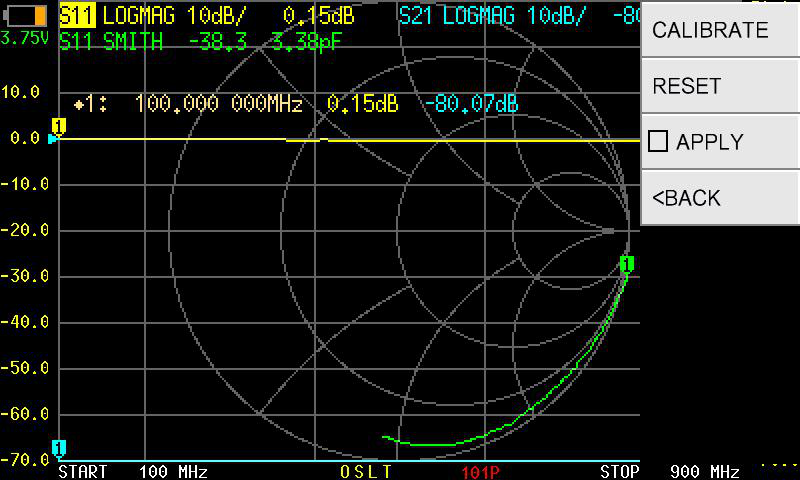
Typical workflow: zoom in on a feature
Section titled “Typical workflow: zoom in on a feature”A common use of marker operations is quickly zooming in on an area of interest:
- Run a wide sweep to identify the feature.
- Place Marker 1 at the left edge of the region you want to examine.
- Tap .
- Place Marker 2 at the right edge.
- Tap .
- The sweep now covers only the region between the two markers.