
Console Commands
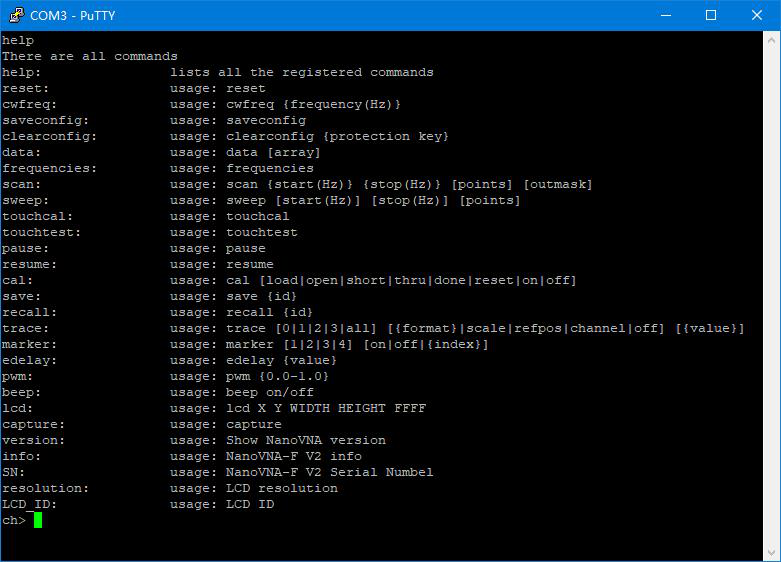
Beyond the NanoVNA-Saver graphical interface, you can control the NanoVNA-F V3 directly through its serial console. This is useful for scripting automated measurements, debugging, or accessing low-level device functions.
Setting Up a Serial Connection
Section titled “Setting Up a Serial Connection”-
Connect the NanoVNA-F V3 to your PC via USB Type-C and power it on.
-
Open a serial terminal. Common options:
-
Configure the connection:
- Port: The COM port or device path for the NanoVNA-F V3 (e.g.,
COM3on Windows,/dev/ttyACM0on Linux) - Baud rate:
115200(the device is adaptive, but 115200 is the standard setting) - Data bits: 8
- Stop bits: 1
- Parity: None
- Flow control: None
- Port: The COM port or device path for the NanoVNA-F V3 (e.g.,
-
Press Enter to get a command prompt. Type
helpto verify the connection is working.
Linux quick-connect example:
screen /dev/ttyACM0 115200picocom /dev/ttyACM0 -b 115200Command Syntax
Section titled “Command Syntax”Commands are plain ASCII text, terminated by a carriage return (CR, ASCII 013). Most terminals send CR when you press Enter.
command {required_parameter} [optional_parameter]- Curly braces
{ }indicate required parameters - Square brackets
[ ]indicate optional parameters - Space characters between tokens are ignored
- Commands are case-sensitive (most are lowercase, but
SN,LCD_IDare uppercase)
Most Useful Commands
Section titled “Most Useful Commands”Here are the commands you will reach for most often. For the full list of all 28 commands with detailed parameter tables, see the Console Command Reference.
Device Information
Section titled “Device Information”| Command | What It Returns |
|---|---|
version | Firmware version string |
info | Hardware revision, firmware, build info |
SN | Unique 16-bit serial number |
Sweep Control
Section titled “Sweep Control”| Command | Example | Description |
|---|---|---|
sweep | sweep 100000000 500000000 201 | Set sweep: 100 MHz to 500 MHz, 201 points |
sweep start 50000000 | Change only the start frequency to 50 MHz | |
pause | Freeze the sweep | |
resume | Continue sweeping |
Data Retrieval
Section titled “Data Retrieval”| Command | Example | Description |
|---|---|---|
frequencies | List all sweep point frequencies | |
data 0 | Get S11 complex data (real + imaginary) | |
data 1 | Get S21 complex data | |
scan 1000000 6000000000 101 7 | Sweep 1 MHz to 6 GHz, 101 points, output all data |
Calibration
Section titled “Calibration”| Command | Description |
|---|---|
cal | Show current calibration status |
cal open | Perform open calibration step |
cal short | Perform short calibration step |
cal load | Perform load calibration step |
cal thru | Perform through calibration step |
cal done | Compute calibration coefficients |
save 0 | Save to slot 0 |
recall 0 | Recall from slot 0 |
Trace and Marker Control
Section titled “Trace and Marker Control”trace 0 logmag # Set trace 0 to log magnitudetrace 0 scale 10 # Set 10 dB per divisionmarker 1 on # Enable marker 1marker 1 200 # Move marker 1 to sweep point 200Scripting Example
Section titled “Scripting Example”You can pipe commands to the device from a shell script for automated measurements. Here is a minimal Python example:
import serialimport time
ser = serial.Serial('/dev/ttyACM0', 115200, timeout=2)time.sleep(0.5)
# Set sweep rangeser.write(b'sweep 430000000 440000000 201\r')time.sleep(0.1)
# Wait for sweep to completetime.sleep(3)
# Read S11 dataser.write(b'data 0\r')time.sleep(0.5)response = ser.read(ser.in_waiting).decode('ascii')print(response)
ser.close()- One connection at a time. If NanoVNA-Saver is connected, close it before opening a serial terminal, and vice versa.
- The
resetcommand drops USB. After sendingreset, you must reconnect your terminal session. - Use
cal resetbefore recalibrating via console. This clears the previous calibration state. - Save your work. Console-issued calibrations are volatile until you run
save [slot].